How to Set Up IPTV on Firestick (2026 Guide)
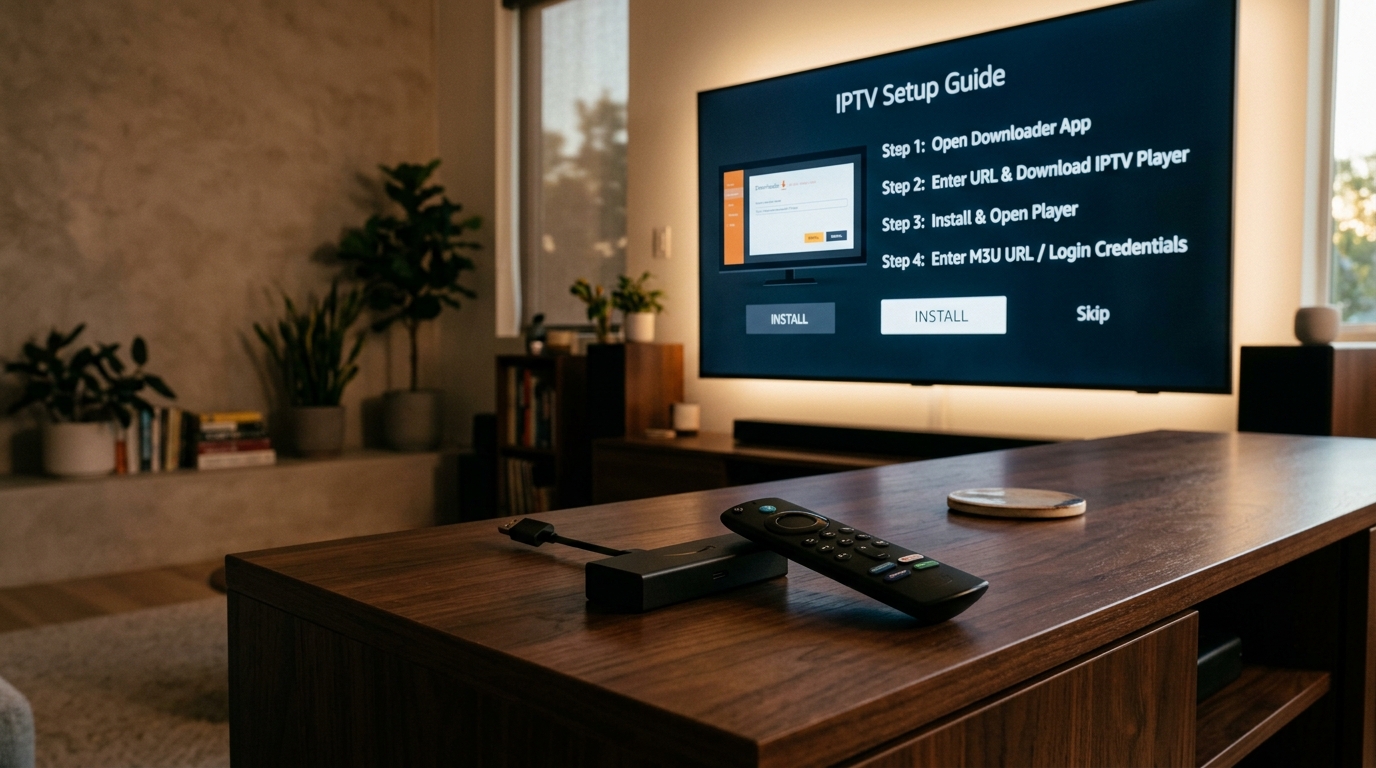
The Amazon Fire TV Stick is the most popular device for streaming IPTV in the UK. It is affordable, powerful, and incredibly easy to use.
If you have just purchased a subscription or started a free trial with Prime IPTV UK, this guide will show you exactly how to get your Firestick ready and install the best viewing app in just a few minutes.
Step 1: Allow “Apps from Unknown Sources”
Before you can install an IPTV player, you need to tell your Firestick to allow third-party apps. Don’t worry—this is a standard process that is completely safe.
- Go to the Home Screen of your Firestick.
- Scroll to the right and select the Settings (Gear Icon).
- Scroll down and select My Fire TV.
- Click on Developer Options. (Note: If you don’t see Developer Options, click on About, then click on your Fire TV Stick’s name 7 times rapidly to unlock it. Then press back to find Developer Options).
- Turn ON “Apps from Unknown Sources” (or “Install Unknown Apps”).
Step 2: Install the Downloader App
Since IPTV player apps are not always in the official Amazon App Store, we use a free app called “Downloader” to get them.
- Go back to the Home Screen and select the Find icon (magnifying glass).
- Type in Downloader.
- Select the orange Downloader app and click Download / Get.
- Once installed, click Open.
- When prompted, click Allow so Downloader can access files.
Step 3: Download Your IPTV Player
Now it’s time to download the app you will use to watch TV. While there are many apps available, we highly recommend Smarters Pro or TiviMate for the best experience.
For this guide, we will install Smarters Pro, as it is the most beginner-friendly.
- Open the Downloader app.
- Click on the URL bar in the middle of the screen.
- Type in the following Downloader Code provided by our team (or type the direct URL:
smarters.link). - Click Go. The app will begin downloading.
- Once the download finishes, a prompt will appear. Click Install.
- After installation, click Open.
Step 4: Log In to Prime IPTV UK
You are almost done! Now you just need to enter your subscription details.
- Open the IPTV app you just installed.
- Select Login with Xtream Codes API.
- You will see a screen asking for four pieces of information:
- Any Name: Type anything you like (e.g., “Prime TV”).
- Username: Enter the username we sent you via WhatsApp.
- Password: Enter the password we sent you.
- URL: Enter the portal URL we provided (make sure to type it exactly, including
http://).
- Click Add User.
- The app will connect to our servers and download your channels, VOD, and series. This may take a minute or two on the first launch.
Step 5: Start Watching!
Congratulations! You have successfully set up your Firestick.
You can now navigate through the Live TV, Movies, and Series sections. To add a channel to your favorites, simply hold the “Select” button on your remote while hovering over the channel.
Troubleshooting Tip: Buffering
If you ever experience buffering, the first thing you should do is restart your router and your Firestick. Unplug both from the wall, wait 30 seconds, and plug them back in. This simple step fixes 90% of streaming issues!
Need further assistance? Our UK team is available 7 days a week. Tap here to message us on WhatsApp.