IPTV on Samsung Smart TV (2026 Guide)
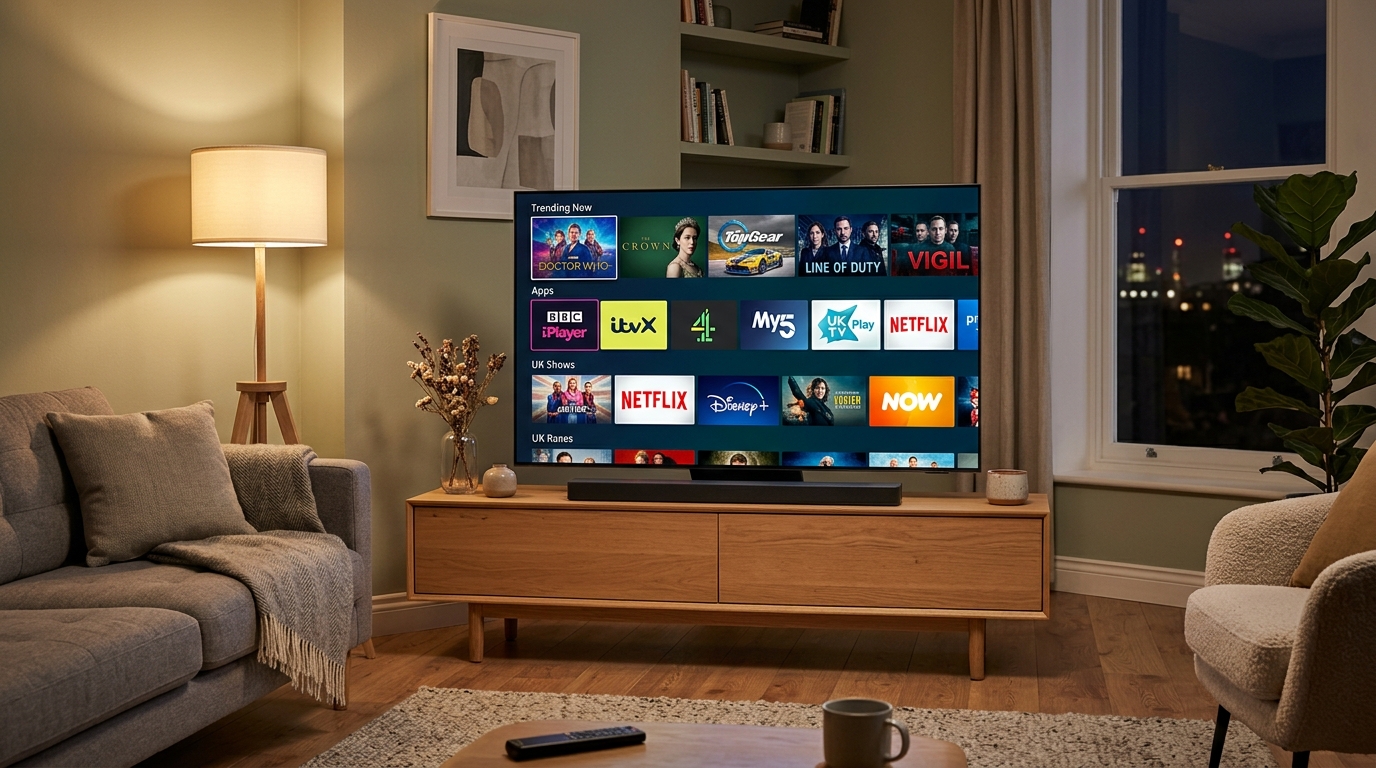
Samsung Smart TVs running Tizen OS are among the most popular television sets in living rooms across Great Britain. With vibrant QLED and Neo QLED panels, 4K resolution, and fast processors, they provide an outstanding screen for streaming live Premier League sports, high-definition entertainment, and cinema releases.
Unlike Android TV devices or the Amazon Firestick, Samsung TVs use their own proprietary operating system called Tizen. You cannot directly install Android APK files on a Samsung TV. However, setting up IPTV on Samsung Smart TV is remarkably straightforward using official apps available directly inside the built-in Samsung App Store.
In this step-by-step 2026 tutorial, we explain how to install the highest-rated player app, activate your subscription via Xtream Codes, and optimize your picture settings for buffer-free 4K viewing.
What You Need Before Starting
Setting up your Samsung television takes less than 5 minutes. Make sure you have:
- Your Samsung Smart TV connected to home broadband (5GHz Wi-Fi or Ethernet recommended).
- Your Samsung TV remote control.
- Your Prime IPTV UK login details (Server URL, Username, and Password). If you don’t have them yet, claim a 24-Hour Free Trial to receive test credentials on WhatsApp in minutes.
Method 1: IBO Player (Recommended for Samsung Tizen)
IBO Player is currently the smoothest, most reliable IPTV application available on the Samsung TV platform. It loads channel lists in seconds, supports 4K UHD video streams, and provides an intuitive Electronic Programme Guide (EPG).
Step 1: Install IBO Player from the Samsung App Store
- Press the Home button on your Samsung remote.
- Navigate left to the Apps icon and press Select.
- Click the Search icon (magnifying glass) in the top-right corner.
- Type in IBO Player and select the official app.
- Click Install / Download and wait a few moments for the download to complete.
- Click Open.
Step 2: Note Your Device ID and Device Key
When IBO Player launches for the first time, your screen will display:
- Device ID / MAC Address (e.g.
70:2a:d5:...) - Device Key (a 6-digit PIN code)
Leave this screen open or write down both numbers.
Step 3: Connect Your Prime IPTV UK Playlist
Because typing long URLs with a TV remote is tedious, IBO Player lets you upload your playlist from your mobile phone, tablet, or computer:
- On your phone or laptop, open your web browser and visit the official portal:
https://iboplayer.com/device/login - Enter the Device ID and Device Key shown on your TV screen, then click Login.
- Click on “Add XC Playlist” (Xtream Codes).
- Fill in the connection details provided by Prime IPTV UK:
- Playlist Name: Prime IPTV UK
- Username: Your account username
- Password: Your account password
- Server URL: The portal link sent to your WhatsApp or email
- Click Save.
Step 4: Reload the App on Your Samsung TV
- Go back to your Samsung television.
- Click Reload / Refresh inside the IBO Player app.
- Your full package of 50,000+ live channels, sports categories, movies, and TV series will load automatically!
Method 2: Smart IPTV (SIPTV)
If you prefer an alternative player, Smart IPTV is an established classic for Samsung TVs.
- Open the Samsung Apps store and search for Smart IPTV.
- Install and launch the application.
- Note the TV MAC Address displayed on your screen.
- On your mobile or computer, go to
https://siptv.app/mylist/. - Enter your MAC address, paste your M3U Playlist URL into the URL field, select “UK” as your EPG country, and click Send.
- Restart the app on your Samsung TV to stream.
Samsung Smart TV vs. Firestick Setup Comparison
| Feature | Samsung Smart TV (Native App) | Amazon Fire TV Stick 4K |
|---|---|---|
| Hardware Required | TV only (No extra dongles) | Separate HDMI stick (£35–£60) |
| Remote Control | Single Samsung One Remote | Firestick Remote |
| Best App | IBO Player | TiviMate IPTV Player |
| Multi-Screen | Single screen | Up to 4 screens (TiviMate) |
| Setup Time | 4 minutes | 5 minutes |
| 4K HDR Support | Native TV processor | HDMI pass-through |
If you also have a Fire TV Stick in another room, check our Step-by-Step Firestick Setup Guide for easy sideloading instructions.
3 Pro Tips for Smooth 4K Playback on Samsung TVs
- Hardwire with Ethernet: Samsung televisions have excellent internal network chips. Plugging an Ethernet cable directly into your TV eliminates Wi-Fi drops during live sports.
- Update TV Firmware: Ensure your Samsung TV is on the latest software version by visiting Settings > Support > Software Update.
- Change Router DNS to Cloudflare: To prevent UK broadband filtering during Premier League matchdays, update your home router DNS to
1.1.1.1. Learn more in our guide on How to Fix IPTV Buffering in the UK.
Start Streaming on Your Samsung Smart TV Today
Ready to test crystal-clear 4K sports, films, and live UK television on your Samsung screen?
Claim your 24-Hour Free Trial today or explore our Annual IPTV Packages from just £39.99 for a full 12-month subscription with friendly 7-day WhatsApp support to guide you through setup.